
Assign Speech Projects
Assign speech projects to your speakers in two simple ways: during the planning journey or directly from your My Projects page. Speakers receive email notifications and can start working on their speeches immediately after registration.
The Assignment Process
Create & Assign During Planning
Or Assign from My Projects
Speaker Receives Email Notification
Speaker Registers & Sees Project
Method 1: Assign During the Planning Journey
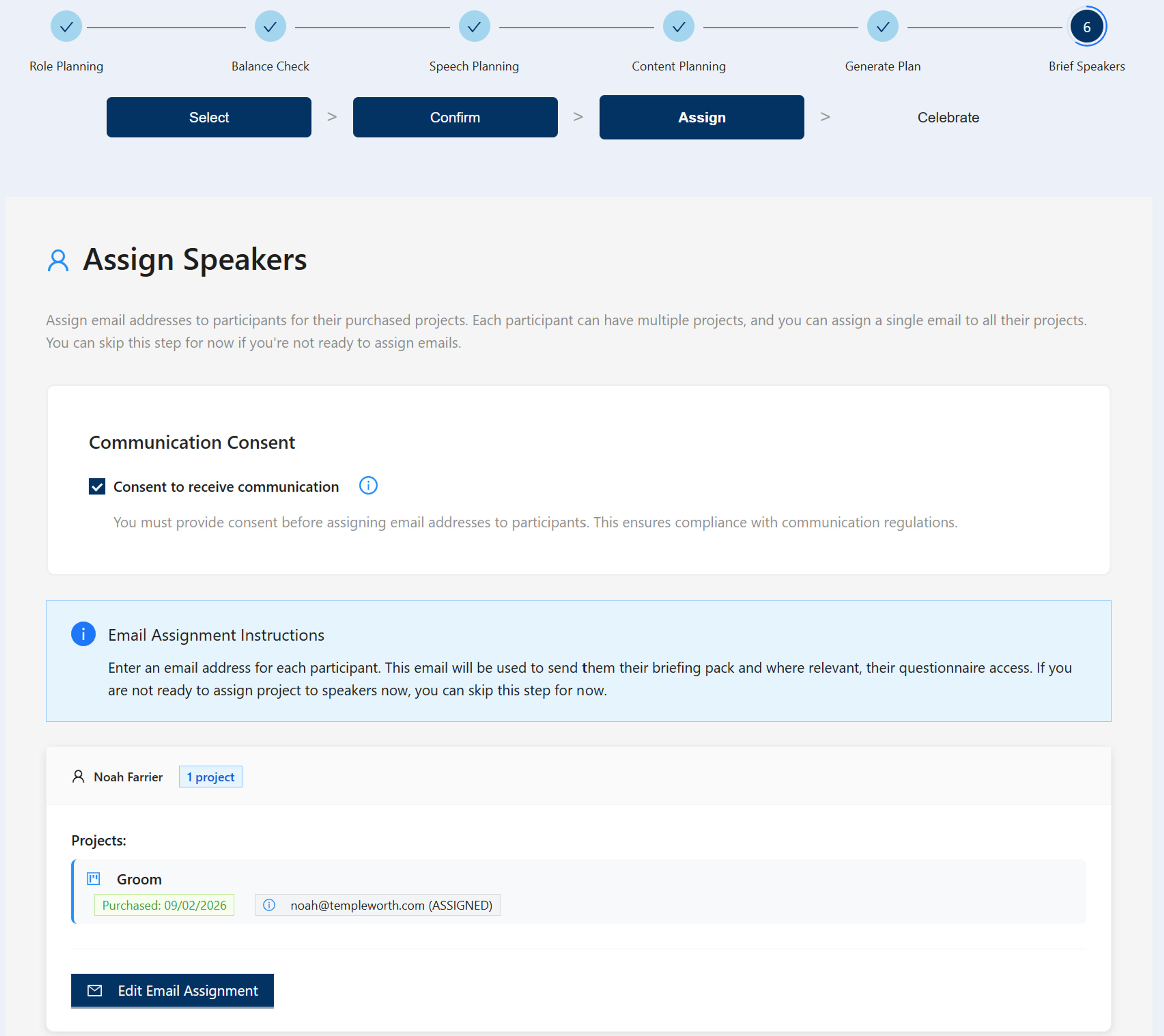
As you work through your wedding speech planning journey, you'll determine which speech projects are needed for your occasion. During this process, you can assign speech projects directly to speakers. This integrated approach ensures that assignment happens naturally as part of your planning workflow.
The planning tool provides a comprehensive view of all your speech projects, making it easy to see what's been assigned and what still needs attention.
Method 2: Assign from My Projects Page
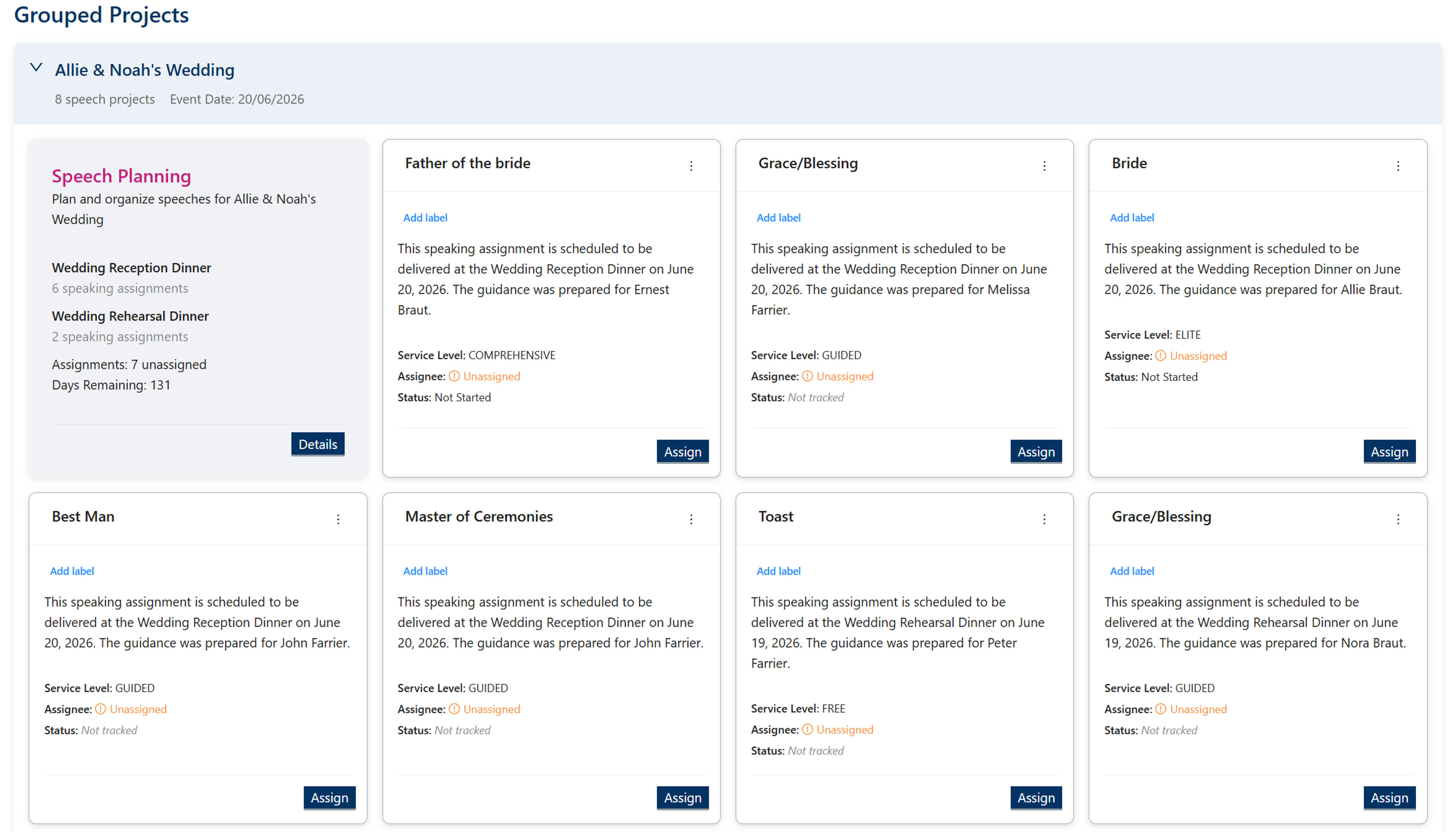
You can also assign speech projects directly from your My Projects page. This view shows all your speech projects grouped by occasion, with each project displaying an "Assign" button when it hasn't been assigned yet.
This method is perfect for:
- Assigning projects you created earlier
- Reassigning projects to different speakers
- Managing multiple projects at once
Simple Email-Based Assignment
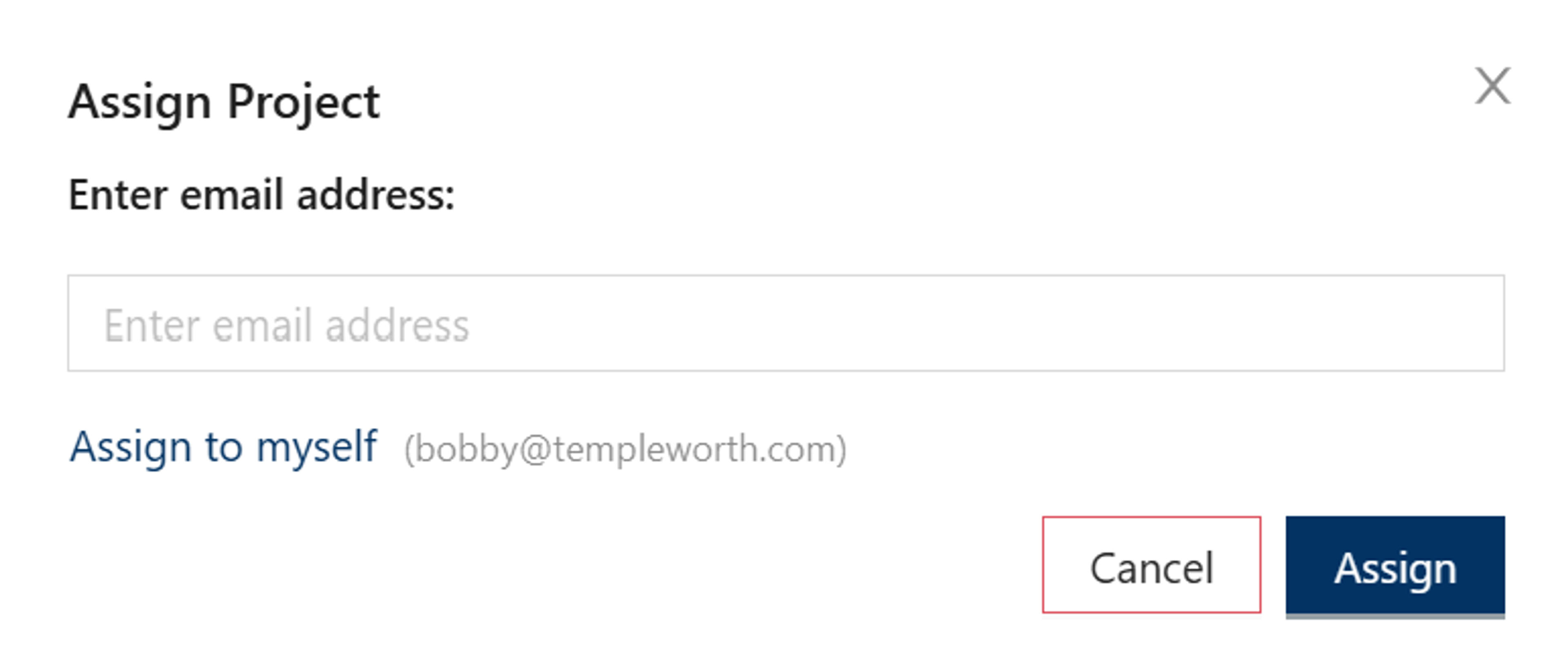
When you click the "Assign" button, a dialog appears where you simply enter the email address of the speaker. That's all it takes—no complex forms or additional information required.
The system handles the rest:
- Sends an email notification to the speaker
- Creates the project assignment
- Provides registration instructions
- Links the project to their account once they register
Speaker Receives Notification & Registers
Once you assign a speech project, the speaker receives an email notification informing them that they've been assigned a speech project. The email includes clear instructions on how to register on the site.
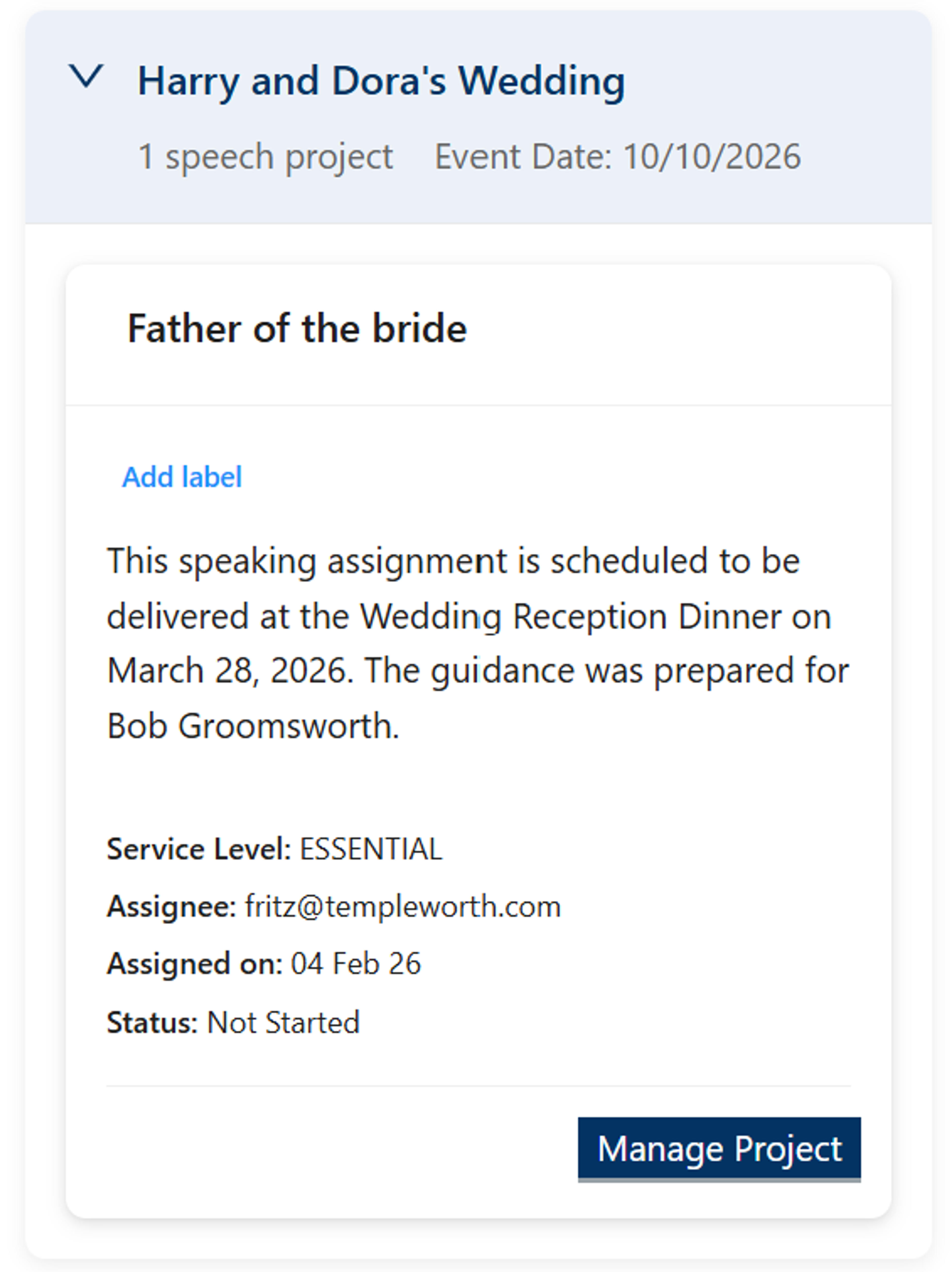
After the speaker logs in, they'll immediately see their assigned speech project on their My Projects page. The project card displays:
- Speech type and role
- Service level
- Current status
- "Manage Project" button for access to all functionality
Clicking "Manage Project" takes them to the project management page where they can access everything they need, including starting the questionnaire, viewing their briefing pack, and generating their speech.
Benefits of Our Assignment System
Simple Process
Just enter an email address—no complex forms or additional information required. The system handles everything else.
Automatic Notifications
Speakers receive immediate email notifications with clear instructions on how to get started.
Seamless Integration
Assignment works seamlessly whether done during planning or from the My Projects page.
Quick Navigation